
Parent's How-To Guide to Create Google Calendar
Many families struggle with not knowing their schedules well enough to fit parkour into their lives. To help families who want to do parkour but don’t know when they can do it, we’ve put together this step-by-step “how-to” guide to creating a Google Calendar.
For the purpose of this guide, we will be focusing on desktop.
Download Google Calendar on mobile
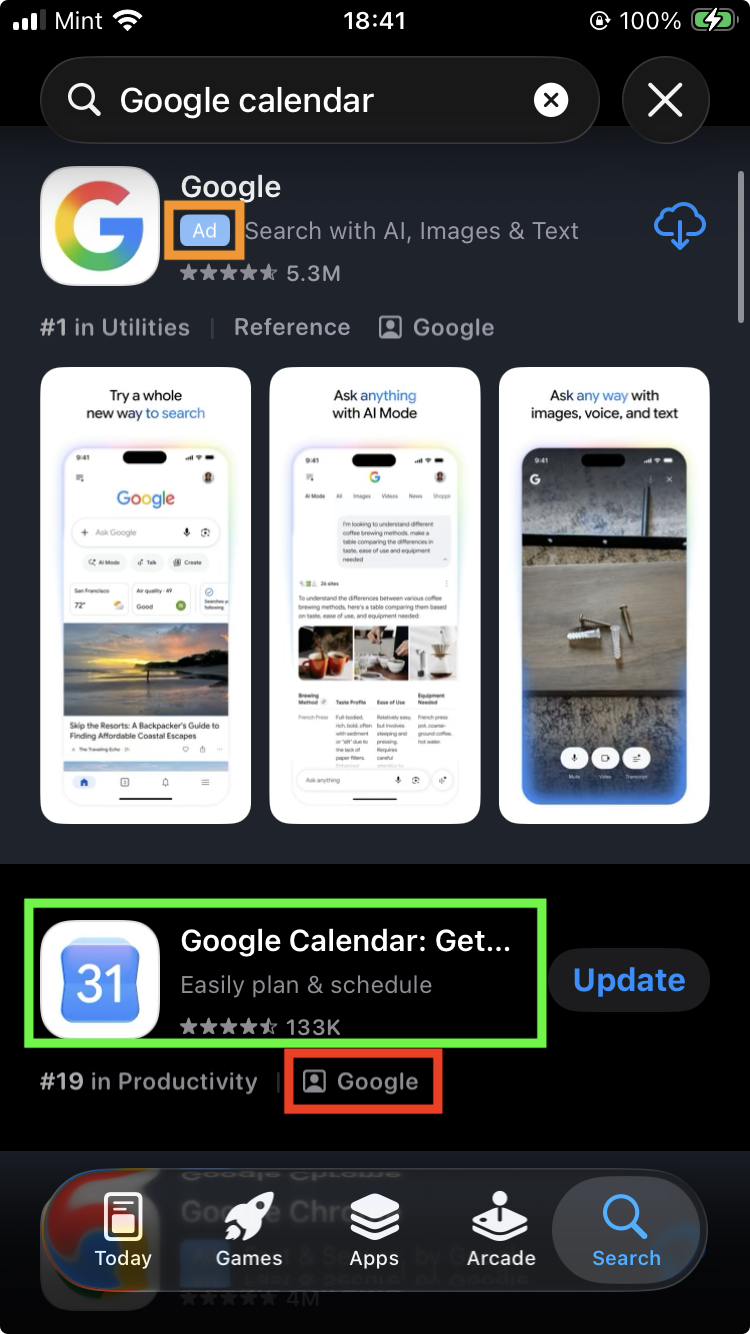
CAUTION: Mobile apps can have many look-a-likes/fakes. Check the developer (red box in image) to verify if it’s legitimate.
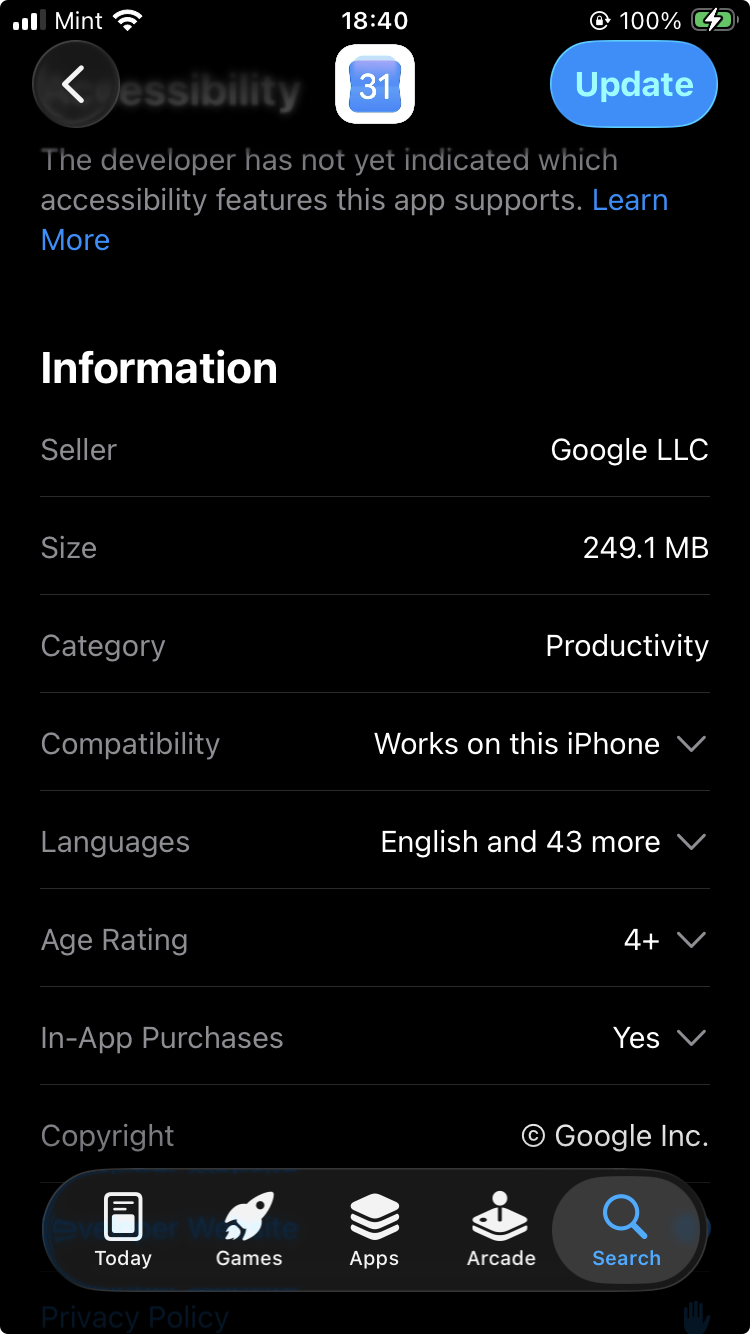
If it’s unclear, select the name of the app (green box) and scroll down until you see “Information” to see details.
Notice that companies can pay to place their listing at the top in search engines. These will usually be marked with “Ad” or “Sponsored” (orange box).
2. Create a (personal) Google account
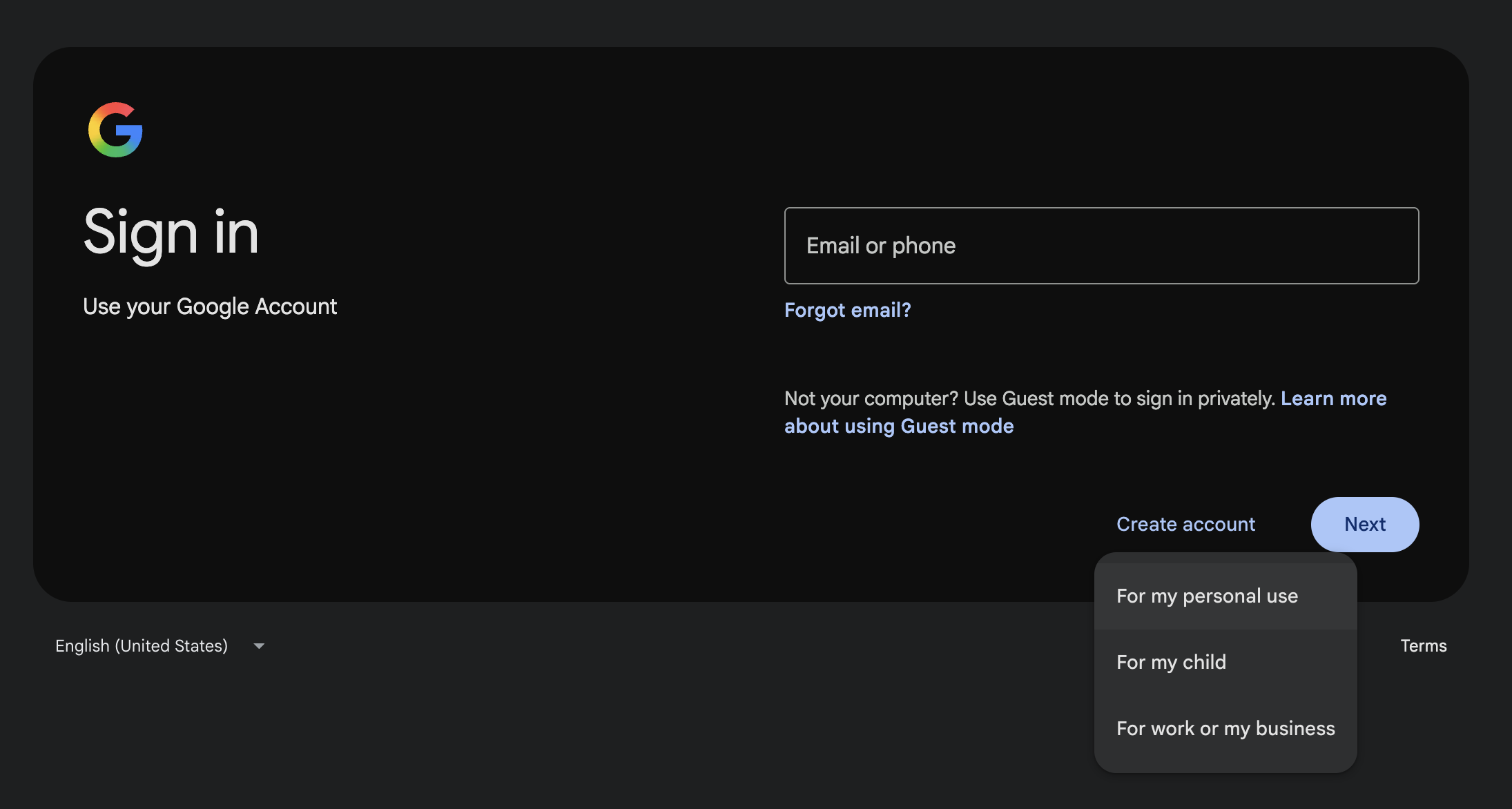
We recommend setting up a personal calendar for this unless you are (1) using your business/work calendar with your personal calendar or (2) creating a calendar for your child for them to manage.
Creating a Google Account is free, and there are many other calendar apps you can use in place of this.
3. Create your events OR Import Your calendar from another app
Once your account is created, go to the app or go to https://calendar.google.com/
You can either start creating events or import a calendar from another app.
To import a calendar from another app, search in Google “export [application] calendar to Google calendar.” Some calendars can only export/import on desktop using .ics files.
To create an event, hit the + icon (on mobile) or click (and drag on desktop) on the calendar where you want to add an event.
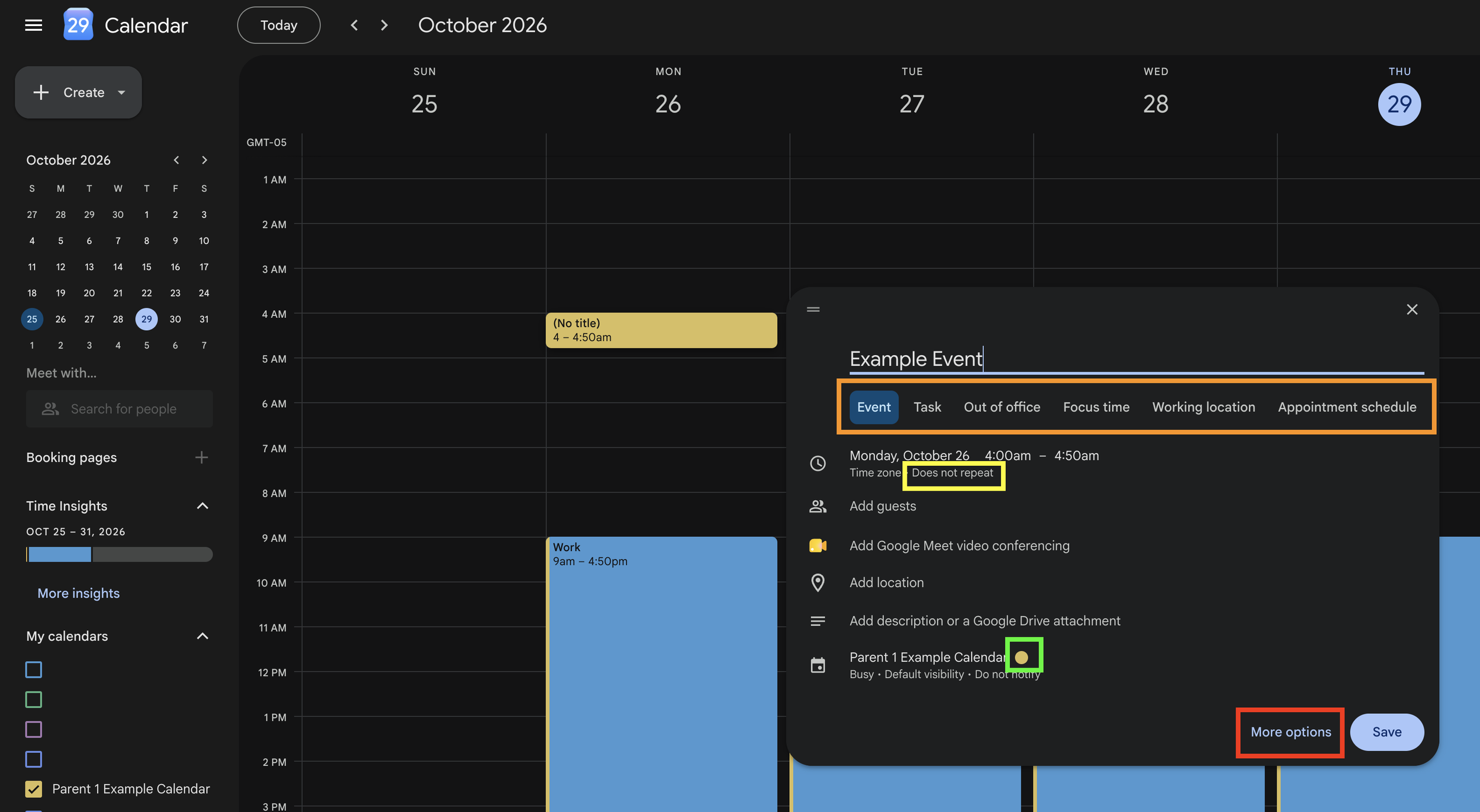
Three settings that are very helpful:
Yellow: click on the date and time to set up recurring events
Green: click on the color to change the event’s color
Red: view all settings. There are many additional settings that are useful.
Orange: change the type of event you are creating.
Below is an example calendar with “NightMode” (dark background) turned on.
Optimize color coding for events. We are using the following color mapping:
Blue: Work / School
Green: Sports & Extracurriculars
Yellow: Events/Vacations/Out-of-Town
Red: To-Dos. You can also change events into Tasks when you create an event. This is set to red because red means bad. You don't want to miss these.
Purple: Chores/Errands/Weekly recurring events
Grey: Holiday/School Breaks
Utilize other colors accordingly. Tasks and the other event types can be powerful to use here.
There are different calendar view types. We recommend:
A weekly or monthly view on desktop
A daily or 3-day view on mobile
Once you’ve added enough events to your calendar, it will look like something below:
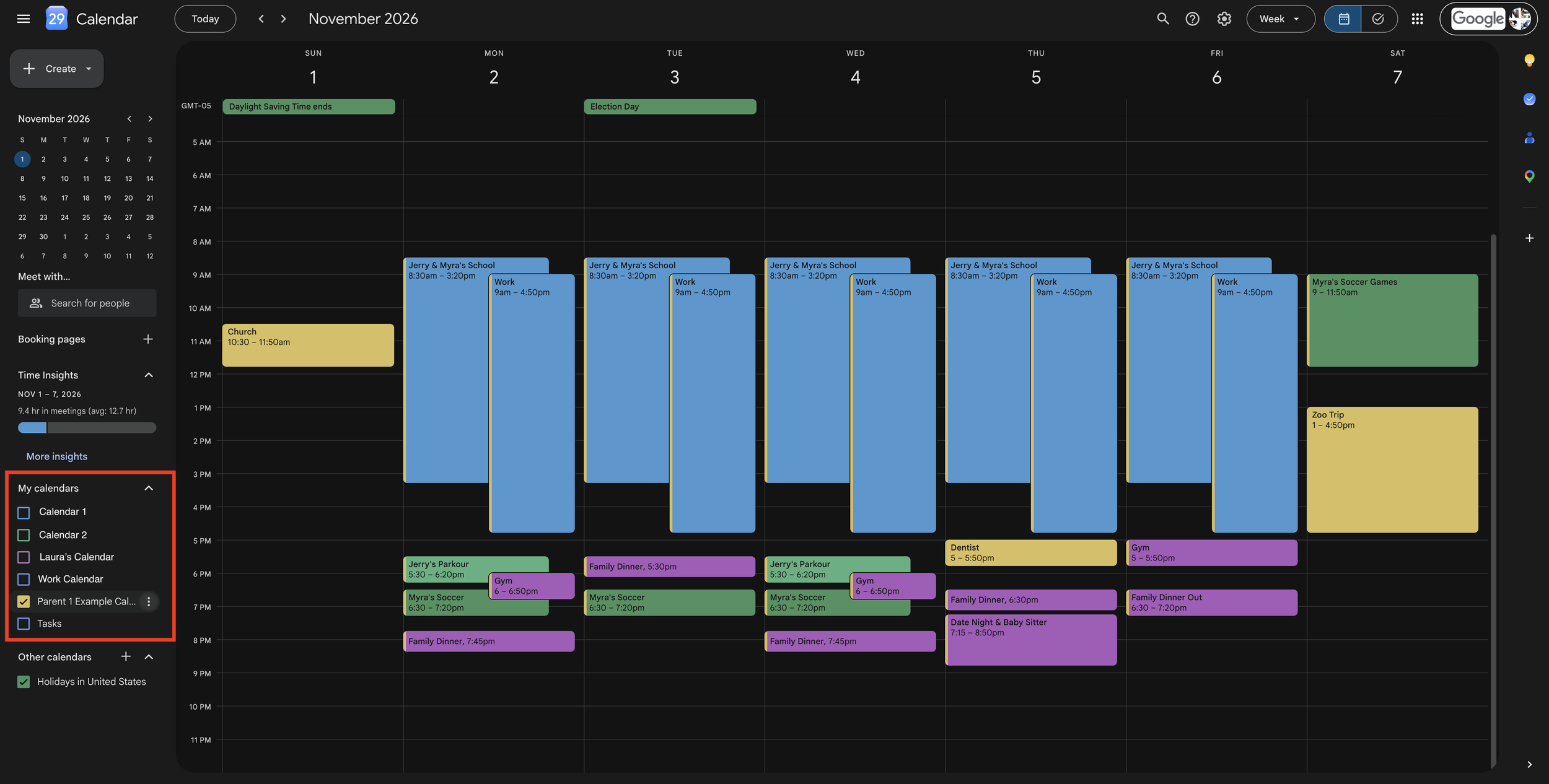
In the red box, you can set your calendar and other people’s calendars to appear/disappear. You can also create multiple calendars for you to view.
4. Share & View Calendars with Others
To add another person’s calendar (such as your spouse), (a) go to “settings” or (b) select the + icon in “Other calendars,” select “From URL,” and paste the URL of the calendar you want to import into your calendar (images below).
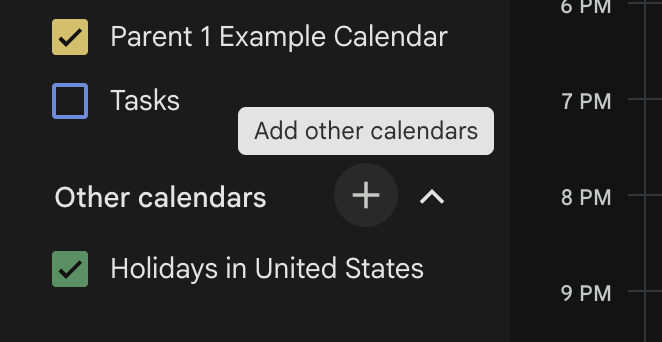
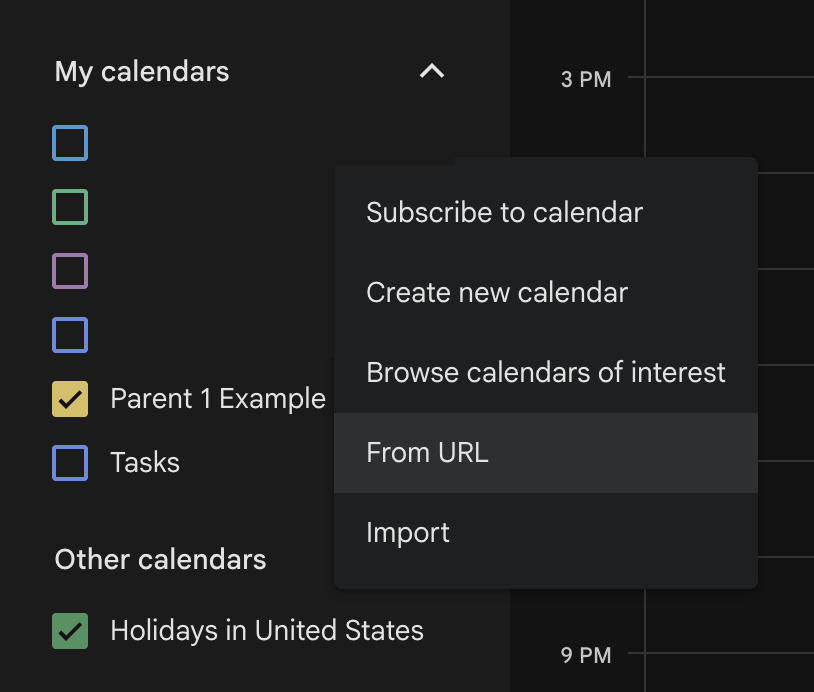
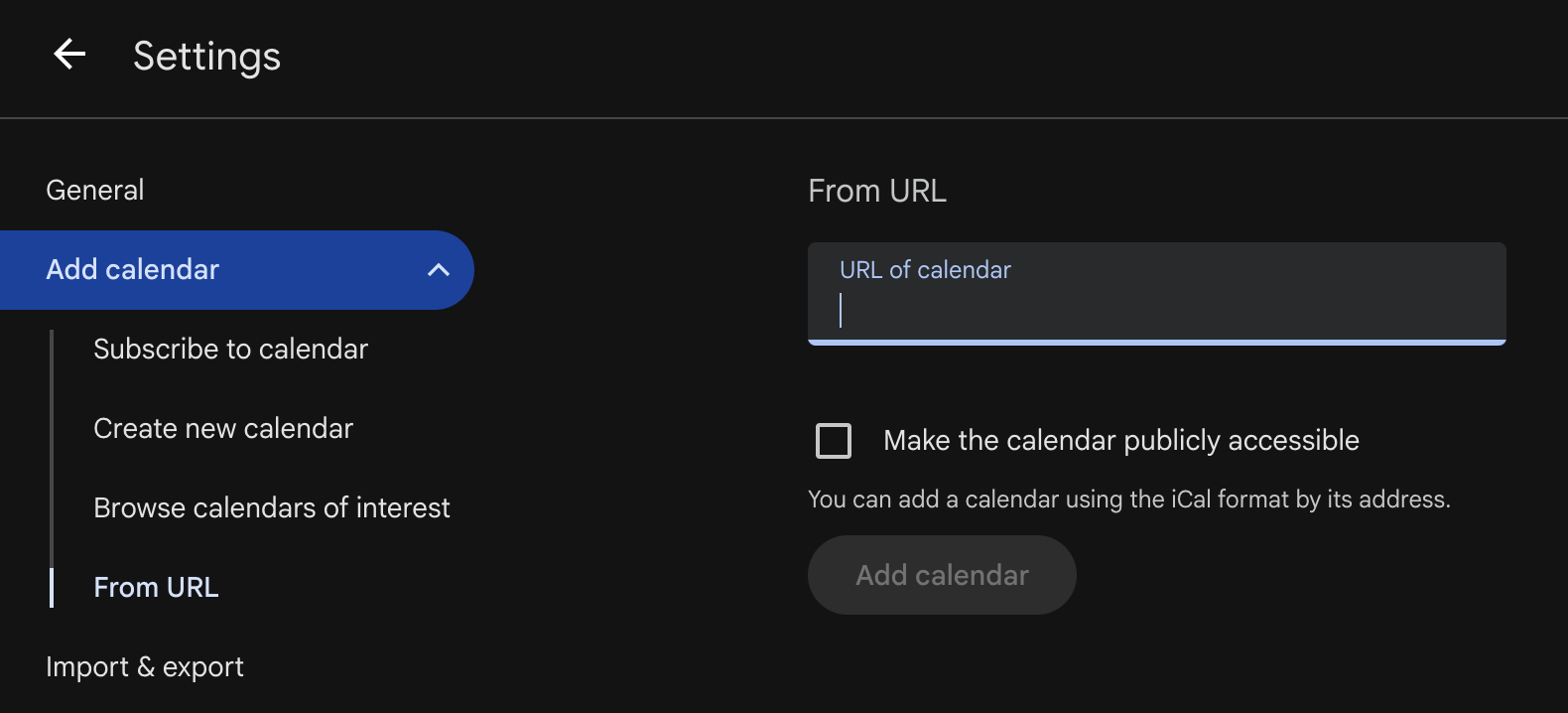
Once the calendar is imported, you can toggle viewing it.
Now that your schedule is all figured out, you can find an opening for your parkour class! We have classes six days a week, and our front desk team can help you navigate your calendar to find a time that works for you.
Last updated: October 30th, 2026